Build the agenda
Drag accepted sessions onto a room-by-time grid, let conflict detection watch your back, and publish when it holds together.
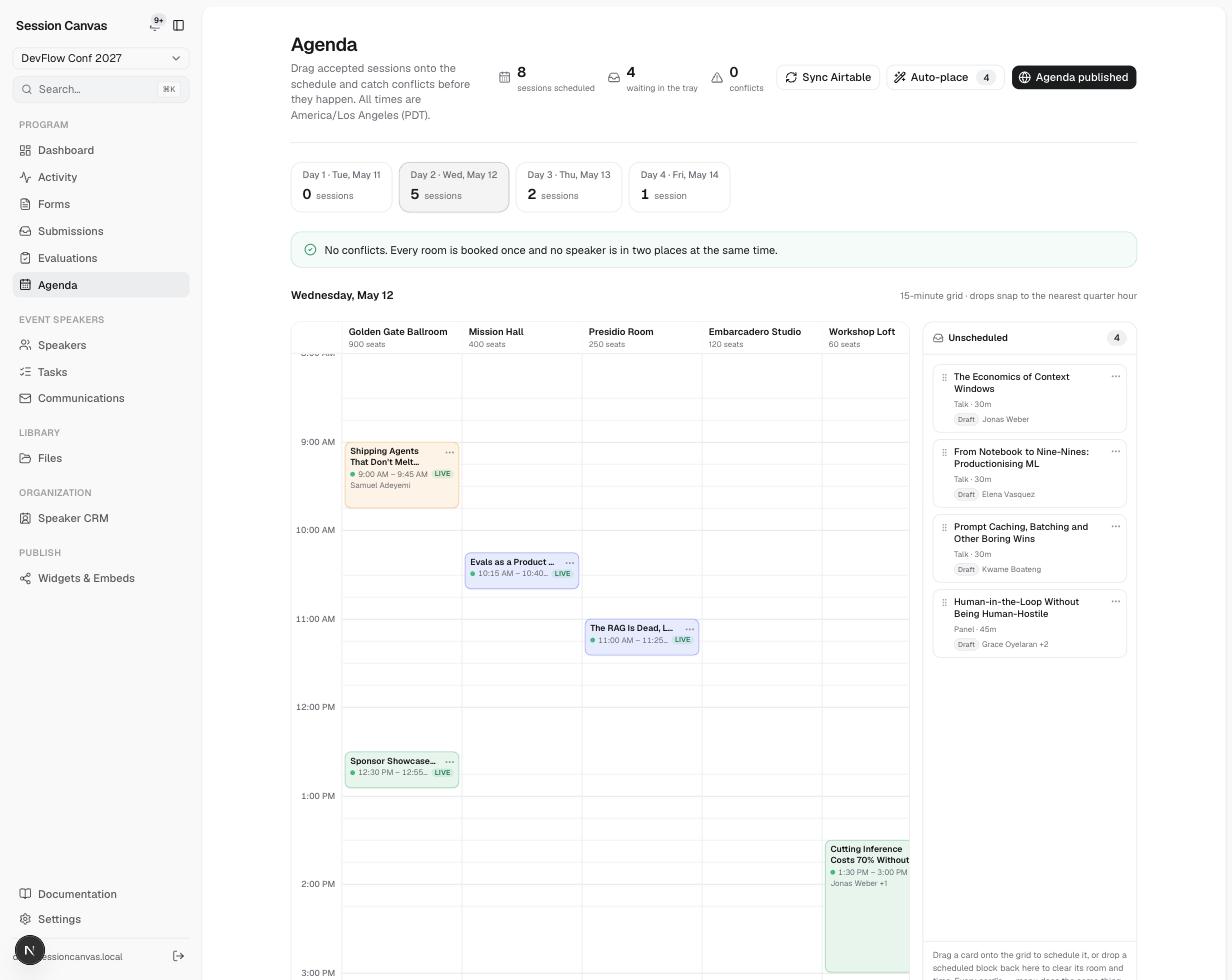
The grid
- Day tabs across the top — one per event day, each showing its session count. All times display in the event’s timezone.
- One column per room, with each room’s capacity under its name. Rooms are managed in Settings → Rooms.
- A 15-minute grid — drops snap to the nearest quarter hour.
- Session cards show time, speaker, and live/draft state, and are colour-coded by track.
Schedule sessions
Accepted sessions arrive in the Unscheduled tray beside the grid. Drag a card onto the grid to give it a day, time, and room; drag a scheduled block back to the tray to clear them again. Auto-place drops every unscheduled session into free, conflict-free slots when you’d rather start from a machine’s guess and adjust.
Conflict detection
The builder continuously checks three things: overlapping sessions in one room, a speaker booked in two places at once, and sessions outside the day’s bounds. A banner reports either “No conflicts” or exactly what clashes, and the header counts conflicts next to scheduled/unscheduled totals.
Publish
Agenda published controls whether scheduled sessions appear on the public widgets, embeds, and feeds — see Embeds, widgets, and feeds. Publishing is a toggle, not an export: the public surfaces read live data, so later changes appear automatically (embeds revalidate within about five minutes).
Sync Airtable on this page works the same as everywhere else — see Airtable sync. Scheduling changes also feed the calendar invites need sending or re-sending nudge on the dashboard, since a moved session means an updated invite.