Build a call-for-speakers form
Create the public form speakers use to submit sessions — questions, conditional logic, deadlines, and the confirmation email.
Forms live under Forms in the admin sidebar. Each form has a shareable public link (/cfp/<event>/<form>), an Open / closed state driven by its close date, and its own submission count.
Edit the questions
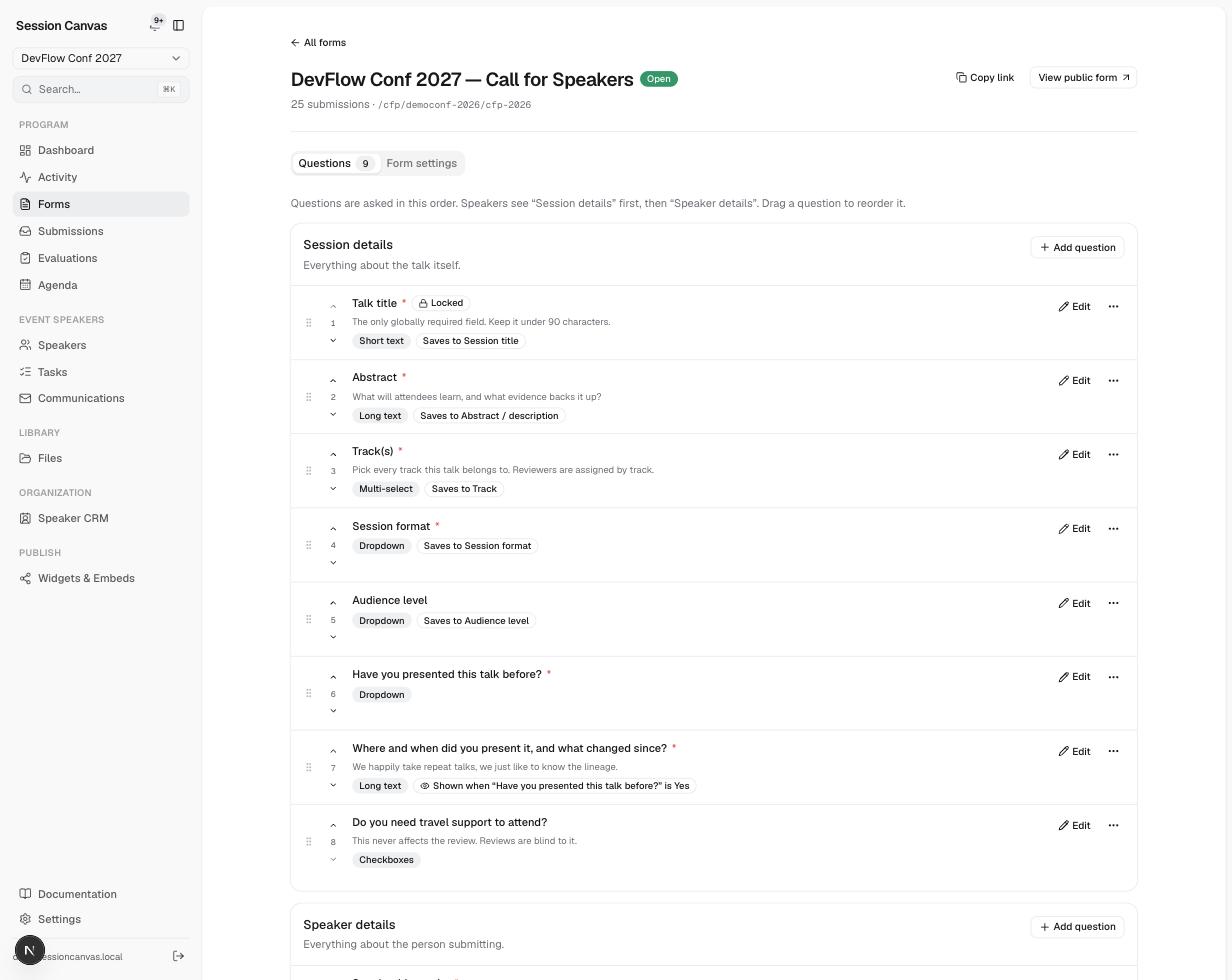
Open a form and you’re on the Questions tab. Questions are grouped into two sections, shown to speakers in order:
- Session details — everything about the talk itself. Talk title is locked and required (it’s the only globally required field in the whole model); everything else is yours to shape.
- Speaker details — everything about the person submitting.
Question types include short text, long text, dropdown, multi-select, and checkboxes. A question can save to a core field (session title, abstract, track, format, audience level…) so answers land as structured data, not free text. Use Add question in either section, Edit to change one, and the drag handle to reorder.
Show a question conditionally
A question can be hidden until an earlier answer triggers it — for example, “Where and when did you present it?” shown only when “Have you presented this talk before?” is Yes. Rules read a choice question above the dependent question with is / is not, can match any of several values, and multiple rules combine with all (AND) or any (OR).
Route submissions by track
Make the Track(s) question a multi-select that saves to Track. Speakers pick every track the talk belongs to, and reviewers are assigned by track — that’s the routing mechanism, no extra configuration.
Form settings
The Form settings tab holds everything that isn’t a question:
- Close date — after it passes, the form stops accepting new and updated submissions, and the forms list flips the badge from Open.
- Per-submitter limits — cap how many proposals one person can send.
- Success page — the message shown after submitting, with an automatic redirect into the speaker portal.
- Confirmation email — sent automatically on every submission, using the Submission received template from Communications.
Share the form
Copy the public link
On the forms list, use Copy next to the form’s URL, or View public form to see exactly what speakers see.
Publish it anywhere
The link works on its own — put it on your website, in newsletters, on social. What speakers experience from here is covered in The public CFP flow.
Watch submissions arrive
Every submission lands in Submissions (and, if connected, as an Airtable row), with the confirmation email logged in the email log.