Speakers and the Speaker CRM
Two views of the same people: this event's speakers with their sessions and tasks, and the organization-wide database that persists across editions.
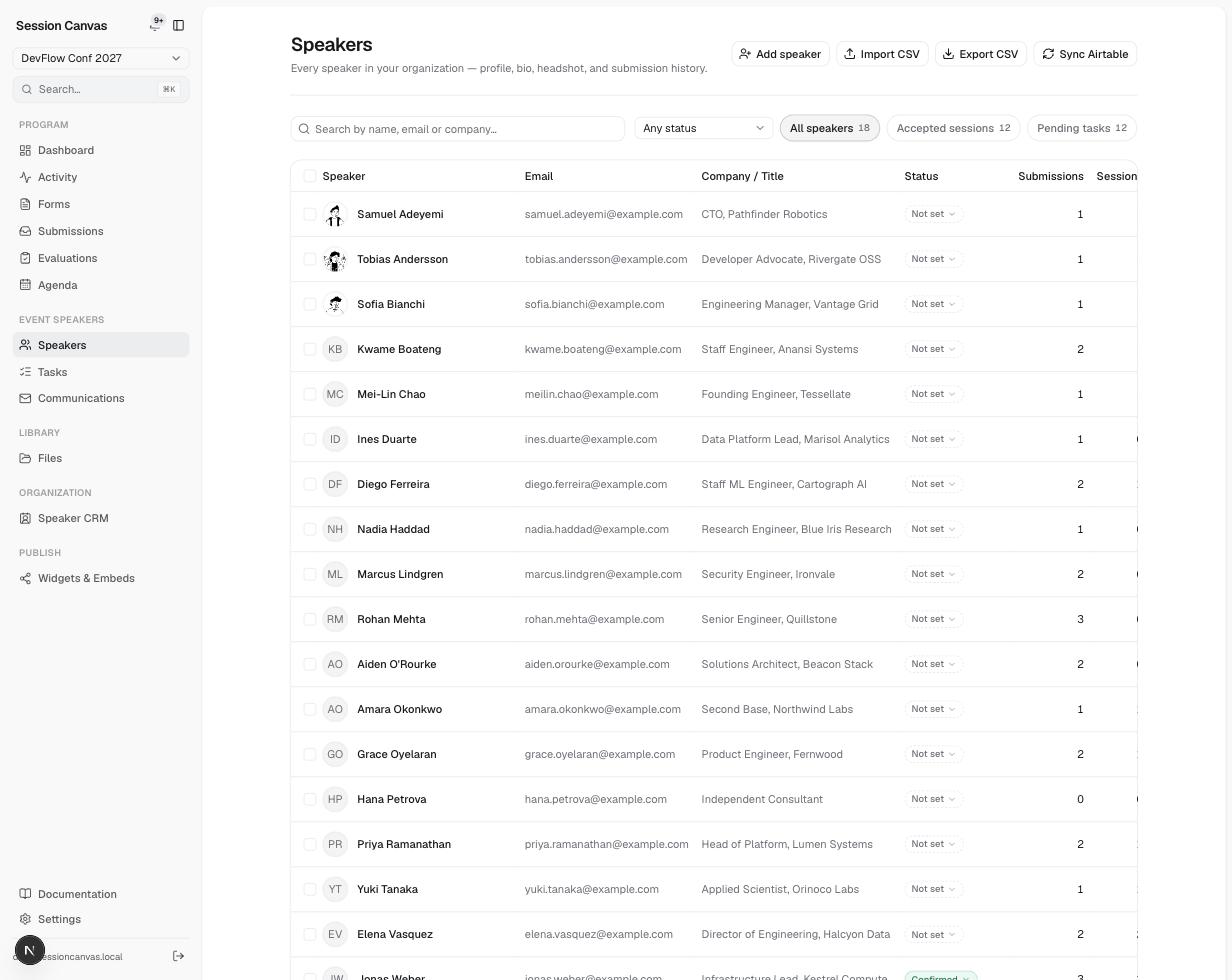
Event speakers
Speakers (under Event speakers in the sidebar) lists everyone attached to the selected event, with their email, company, confirmation status, and submission/session counts. From here you can:
- Search and filter — by name, email, or company, by status, or with the quick filters (All speakers, Accepted sessions, Pending tasks).
- Add speaker manually, or Import CSV / Export CSV for spreadsheet round-trips.
- Open a speaker to see their full profile — bio, headshot, socials, submissions, tasks, files, portal login history, and a field-level change history that attributes every edit to the organizer or to the speaker via the portal.
- Copy portal link from a speaker’s page — a fresh 7-day sign-in link to their portal, for the speaker who can’t find the email.
One person, one record
Email is the identity key. Someone submitting three proposals — or returning next year — stays one contact, with their history attached. A CFP submission never overwrites details an organizer filled in with blanks, and a speaker’s portal edits are visible in the change history rather than silently replacing yours.
The Speaker CRM
Speaker CRM (under Organization) is the org-level view — every contact across all your events, not just the selected one:
- Directory — the full searchable database, with custom fields.
- Pipeline — a kanban board for sourcing: speakers you’re prospecting, inviting, and confirming for future programmes.
- Segments — saved filters over the directory for bulk actions and outreach.