Airtable sync
Keep Airtable as your team's readable source of truth: submissions mirror out as rows, and status decisions made in Airtable flow back in.
Many event teams run their operations from an Airtable base — automations fire when a new row lands, and organizers triage from the grid. Session Canvas fits into that flow instead of replacing it:
- Outbound — every new CFP submission is pushed as an Airtable row straight away (so “new row” automations fire), and Sync now re-pushes anything edited in Session Canvas since it was last mirrored.
- Inbound — a scheduled run, Sync now, and a settings-page load when the last run is over 15 minutes old all read the table back and apply any
Statusan organizer changed. Status matching is forgiving (“Approved”, “Waitlisted”, “Rejected” and similar variants all map). An inboundAcceptedruns the full acceptance — creates the session, copies tracks and speakers, assigns active task templates — but never sends an email. - Mirrors — the org’s speakers and the event’s sessions are also mirrored out to
SpeakersandSessionstables. Those two are strictly one-way: nothing is ever read back from them. - Rows created directly in Airtable are counted as skipped, not imported — creating submissions from Airtable is out of scope.
The integration is optional and dormant by default: with no connection and no env vars, outbound calls log a single [airtable:mocked] line and no-op. No Airtable account is needed to run Session Canvas.
What lands in the base
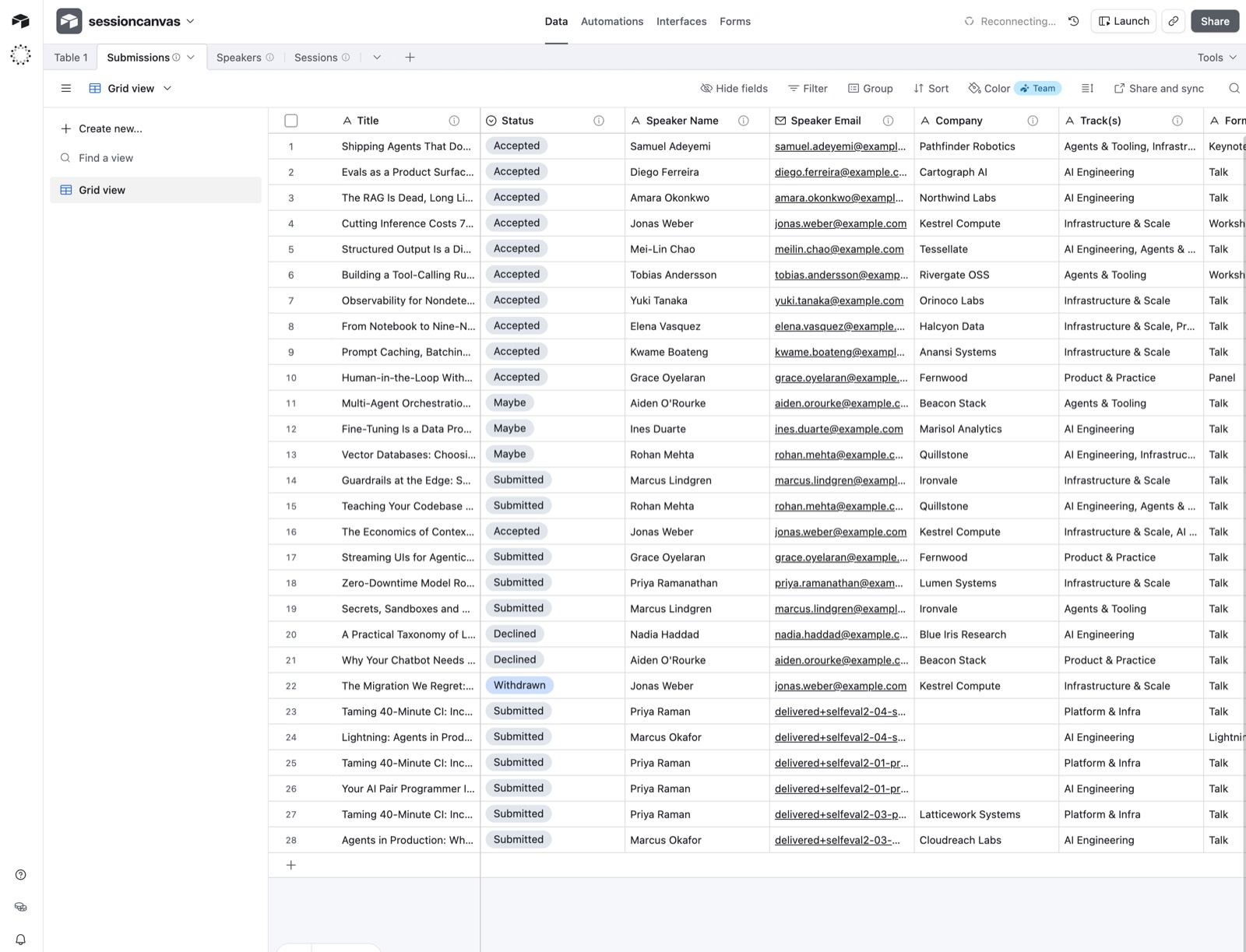
Once connected, the base fills itself. The Submissions table is the two-way one — every live proposal as a row, with the Status single-select your team (and their automations) work from:
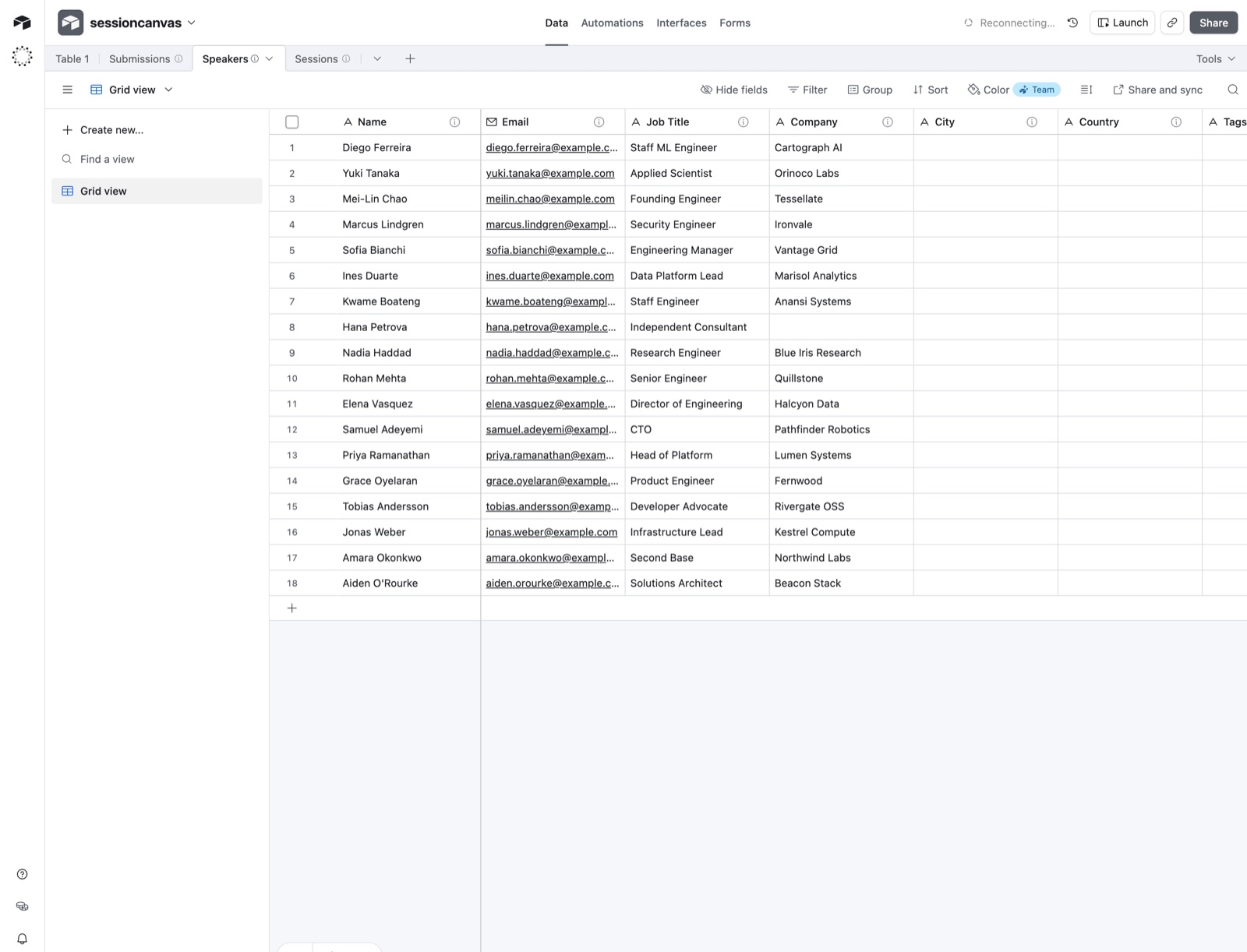
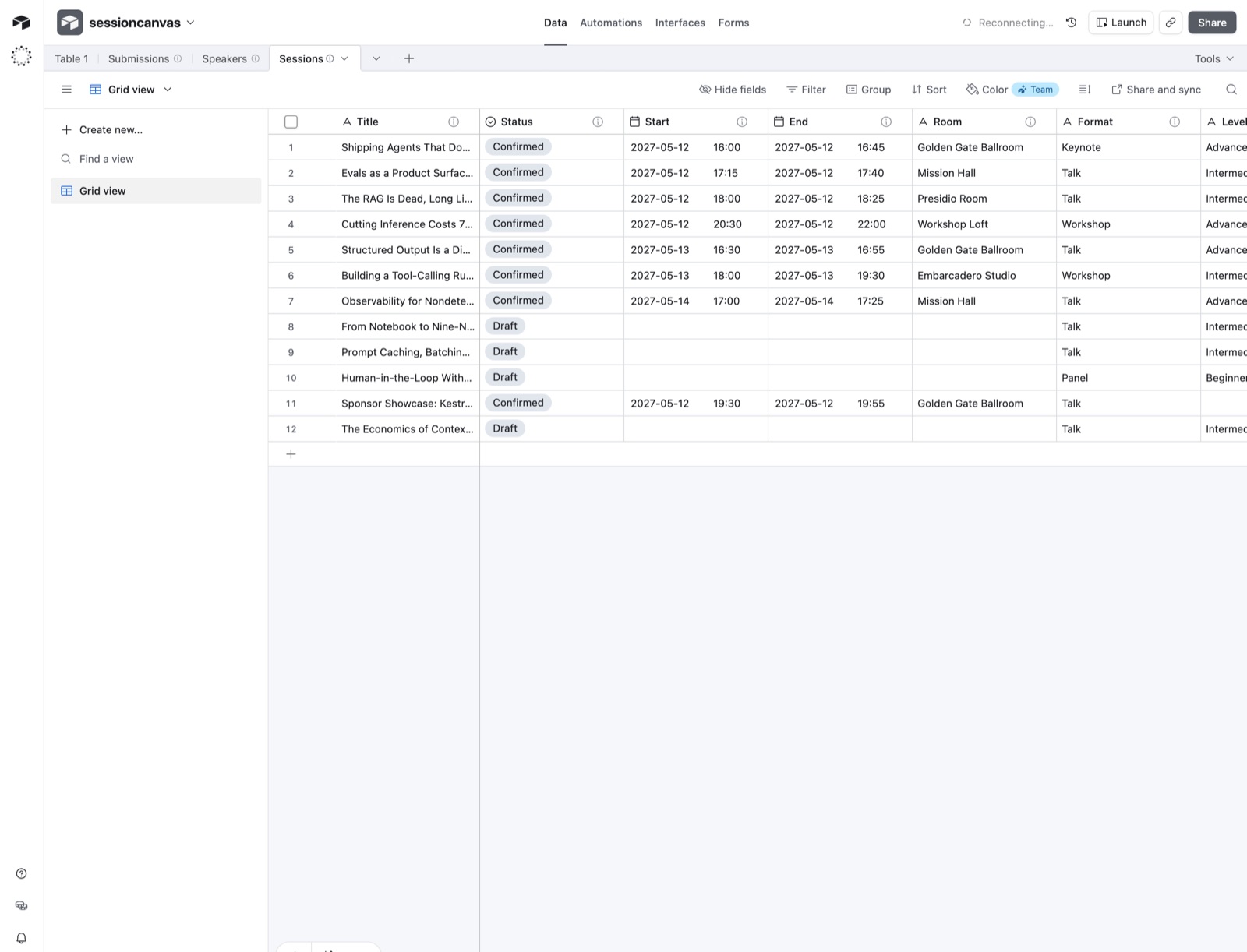
The Speakers and Sessions mirrors ride along, one-way out — a browsable copy of the speaker roster and the (scheduled or draft) programme for anyone on the team who lives in Airtable:
Connect a base
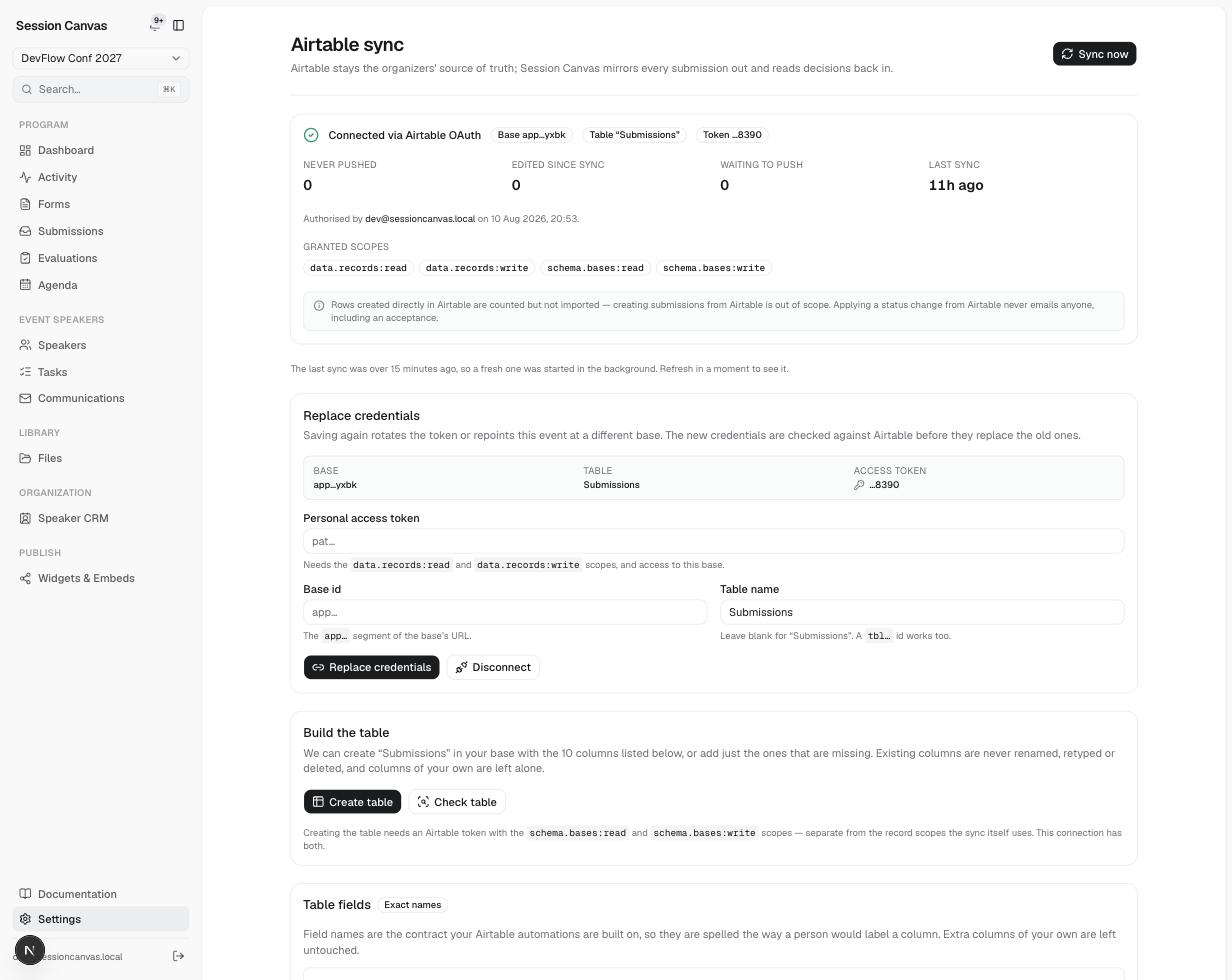
Everything lives at Settings → Airtable (/admin/settings/airtable). There are three ways to connect, and a per-event connection always beats the deployment-wide env vars:
Sign in with Airtable (OAuth)
If the deployment is registered as an Airtable OAuth integration, the page shows a Connect Airtable button. It sends the organizer to Airtable’s consent screen; Session Canvas receives a short-lived access token plus a refresh token, both encrypted at rest, and refreshes them itself. Consent grants access to a set of bases, so the last step is a picker: choose the base this event mirrors into, then Build the table if it needs one. Nobody pastes a long-lived token through a clipboard.
Paste a personal access token
Enter a token and base id directly on the settings page. Credentials are stored per event — two events in one deployment can mirror into two different bases — and are encrypted at rest, which requires ENCRYPTION_KEY to be set. Without it, the connect form tells you so rather than storing anything.
Set the AIRTABLE_* env vars
AIRTABLE_API_KEY + AIRTABLE_BASE_ID act as a deployment-wide fallback: every event without its own connection uses them. Simplest for a single-event deployment, and needs no ENCRYPTION_KEY. The settings page labels the badge Connected (env) when an event is running on the fallback, so the two are distinguishable at a glance.
Let Session Canvas build the tables
Once a base is connected, the settings page offers a Build the table card with two buttons — Create table (which becomes Add N missing columns or Nothing to create as appropriate) and a read-only Check table. One click creates the two-way Submissions table with all ten columns, correctly typed — and also creates the one-way Speakers and Sessions mirror tables in the same pass. This needs a token with the schema.bases:read and schema.bases:write scopes in addition to data.records:read / data.records:write. Airtable cannot add scopes to a token after creation, so tick all four when minting it.
Provisioning only ever creates. It never renames, retypes, or deletes a field, never edits the options on an existing select, and never touches a column it did not create. Running it twice is safe — it inspects first and reports “nothing to do”. Creating the base itself is still manual (Airtable’s API needs a workspace id it offers no way to look up).
Expected table fields
This is what Build the table creates — and what to build by hand if you would rather not grant the schema scopes. Field names are the contract your automations are built on. Extra columns of your own are left untouched; draft submissions are not mirrored.
| Field | Airtable type | Contents |
|---|---|---|
Title | Single line text | Proposal title |
Status | Single select | The one column read back. Options: Submitted, Maybe, Accepted, Declined (variants such as “Unreviewed”, “Approved”, “Rejected”, “Waitlisted” are tolerated) |
Speaker Name | Single line text | Primary speaker |
Speaker Email | Primary speaker’s address | |
Company | Single line text | Speaker’s company |
Track(s) | Single line text | Comma-joined track names |
Format | Single line text | Session format name |
Submitted At | Date (with time) | ISO 8601 timestamp |
App URL | URL | Deep link to /admin/submissions/{id} |
Description | Long text | Abstract, truncated to 2,000 characters |
Scheduled syncing
Syncing is automatic. A Vercel Cron registered in vercel.json calls /api/cron/airtable-sync daily at 07:00 UTC — two hours before the task-reminder job, so an acceptance made in Airtable overnight has already created its session and onboarding tasks by the time reminders go out. Daily is what the Vercel Hobby plan allows; on Pro, raise it to match the app’s own 15-minute freshness threshold:
{ "path": "/api/cron/airtable-sync", "schedule": "*/15 * * * *" }Each run syncs events sequentially — never in parallel — so a busy instance doesn’t multiply request pressure against Airtable’s per-base rate limits. A run picks up an event when it has a connected base or has synced at least once before; events that never synced are left alone until somebody connects a base or clicks Sync now.
Set CRON_SECRET to protect the endpoint — in production it is required (without it the route answers 401 and scheduled syncing stops); in development the endpoint stays open so you can trigger runs freely. To trigger a run by hand:
curl -i -H "Authorization: Bearer $CRON_SECRET" \
  https://your-deployment.vercel.app/api/cron/airtable-sync
Add ?dryRun=1 to see which events would sync without running anything. The JSON response reports per-event outcomes plus totals for pushed / pulled / skipped / failed.
Setting up OAuth (optional, for self-hosters)
OAuth is entirely optional — with these variables unset, the button simply does not appear and the token and env-var paths work as before. Register an integration at airtable.com/create/oauth, request the data.records:read, data.records:write, schema.bases:read and schema.bases:write scopes, then set AIRTABLE_OAUTH_CLIENT_ID, AIRTABLE_OAUTH_CLIENT_SECRET (if issued), and AIRTABLE_OAUTH_REDIRECT_URI — plus ENCRYPTION_KEY. Details for each are in the environment variable reference.
Behaviour notes
- The client talks to the Airtable REST API with plain
fetch— no extra dependency. Writes are batched at Airtable’s maximum of 10 records per request, sent sequentially at roughly 4.5 requests/second; a429is retried once afterRetry-Afterbefore giving up. - Every pass writes a sync-run row (pushed / pulled / skipped / failed counts plus any error), visible on the settings page. An unfinished run doubles as the concurrency guard, so two syncs never overlap.
A typical team workflow
Connect the base your ops team already uses
Settings → Airtable → Connect, then Build the table.
Let submissions flow in
Each CFP submission appears as a row within moments — your existing “new-row” automations (Slack pings, assignment rotations) fire unchanged.
Decide in either tool
Change
StatustoAcceptedin Airtable, or accept inside Session Canvas — either way the session, tracks, speakers, and onboarding tasks are created. Decision emails are only ever sent deliberately from Communications.